まず、信頼するサイトに localhost( またはイントラネットのサーバ ) を登録します。
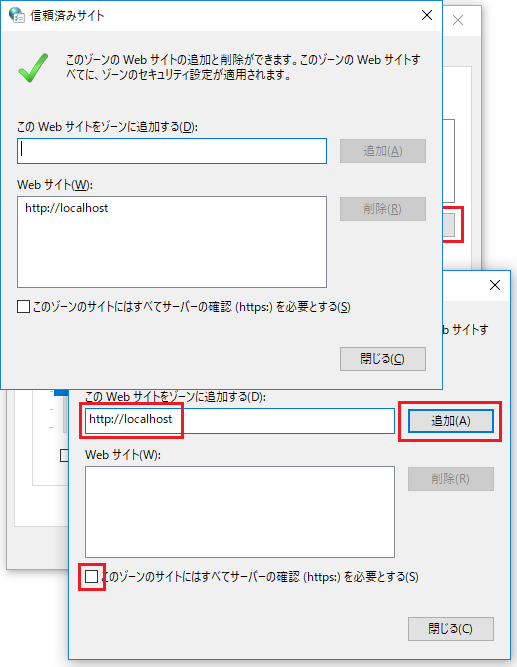
▼ 以下の .reg ファイルをエクスプローラからダブルクリックしてインポートする事もできます
1.Windows Registry Editor Version 5.002. 3.[HKEY_CURRENT_USER\Software\Microsoft\Windows\CurrentVersion\Internet Settings\Zones\2]4."1201"=dword:00000000▼ .reg ファイルをダウンロード その上で以下のコードを localhost で実行が可能です。
01.<!DOCTYPE html>02.<html>03.<head>04.<meta http-equiv="X-UA-Compatible" content="IE=edge">05.<meta http-equiv="Content-type" content="text/html; charset=shift_jis">06.<script src="https://ajax.googleapis.com/ajax/libs/jquery/3.3.1/jquery.min.js"></script>07.<script>08. 09.// *************************************10.// IE 用オブジェクト作成関数11.// *************************************12.function newObject( className ) {13. 14. var obj;15. 16. try {17. obj = new ActiveXObject( className );18. }19. catch (e) {20. obj = null;21. }22. 23. return obj;24. 25.}26. 27.// *************************************28.// Excel 用オブジェクト 格納変数29.// *************************************30.var excelApp = null;31.var myBook = null;32. 33.// *************************************34.// Exce ブックを読み込んで更新して終了35.// *************************************36.function excelTest() {37. 38. // Excel オブジェクト作成39. if ( excelApp == null ) {40. excelApp = newObject("Excel.Application");41. }42. 43. // Excel ブックの読み込み44. myBook = excelApp.Workbooks.Open("C:\\Users\\lightbox\\Documents\\Book1.xlsx");45. 46. // アクティブなウィンドウを最大化47. excelApp.ActiveWindow.WindowState = 2;48. // 表示時様態にする49. excelApp.Visible = true;50. 51. // jQuery でオブジェクトの一覧を取得して Excel のセルに情報をセットする52. var row = 0;53. $.each( window.navigator, function( key, value ){54. 55. row++;56. // シートのセルに書き込み57. myBook.Sheets("Sheet1").Cells(row, 1) = key;58. myBook.Sheets("Sheet1").Cells(row, 2) = typeof value;59. myBook.Sheets("Sheet1").Cells(row, 3) = value;60. 61. });62. 63. // 保存64. myBook.Save();65. 66. // Excel の終了67. if ( excelApp != null ) {68. excelApp.Quit();69. excelApp = null;70. }71. 72.}73. 74.</script>75.</head>76.<body>77.<input id="export" type="button" value="Excel のテスト" onclick="excelTest();">78.</body>79.</html>